Integrate with Microsoft Azure AD
By connecting your Microsoft Azure AD to Evercate, you can use your AD to sync users and enable Single Sign On (SSO).
Once you have created a connection, you can choose whether to enable provisioning, single sign on, or both.
Note: If you use a custom domain for your Evercate license (e.g., training.your-domain.com instead of your-domain.evercate.com), you must send an email to support@evercate.com so we can approve the domain before you proceed with this guide.
Creating the connection
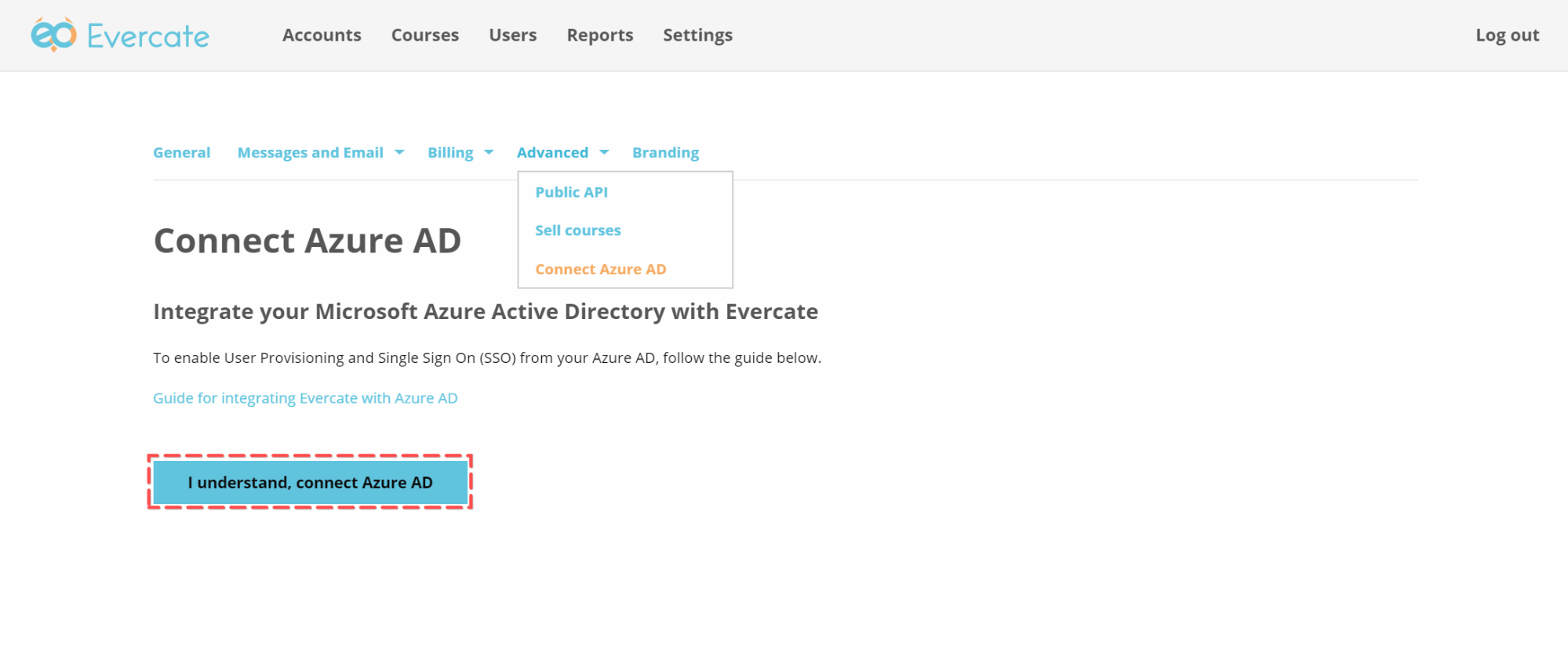
Log in to Evercate as an administrator and click on Settings in the top menu.
Under Settings, go to Advanced -> Connect Azure AD
Click the "I understand, connect Azure AD" button to start the process.
Approve the application with an AD administrator
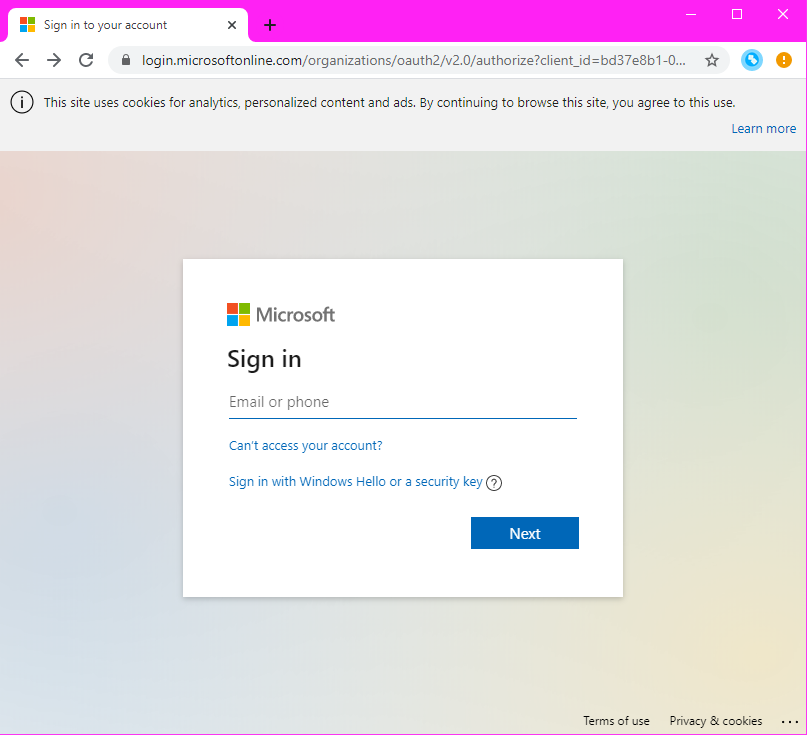
You will now be taken to Microsoft's Sign in page where you need to log in as an administrator for your AD.
The Microsoft user you log in with must:
- Be an administrator with permission to "Enterprise Applications"
- Be an AD user and not a personal account
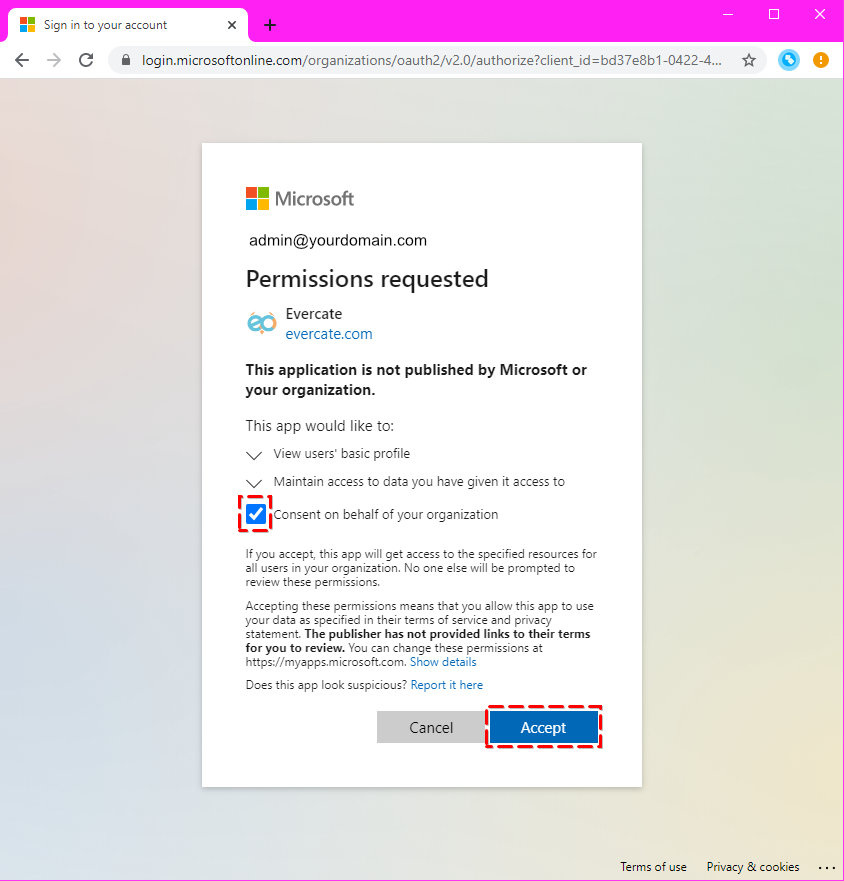
Once you have logged in with your Microsoft account, you will see a dialog requesting permissions for Evercate.
Check "Consent on behalf of your organization" before clicking Accept.
Note: If you missed checking the consent checkbox, all users will see a similar dialog on their first login. See below under the section "Configure the application in Azure for SSO" for how to grant consent for your organization after the connection has been made.
Configure AD options in Evercate
Once you have configured the connection to Azure AD, you can configure which AD features you want to enable in Evercate.
Under Settings -> Advanced -> Connect Azure AD, you will see the token you need to enable provisioning (activated from Azure AD) and can check the box to allow single sign on for your Evercate account.
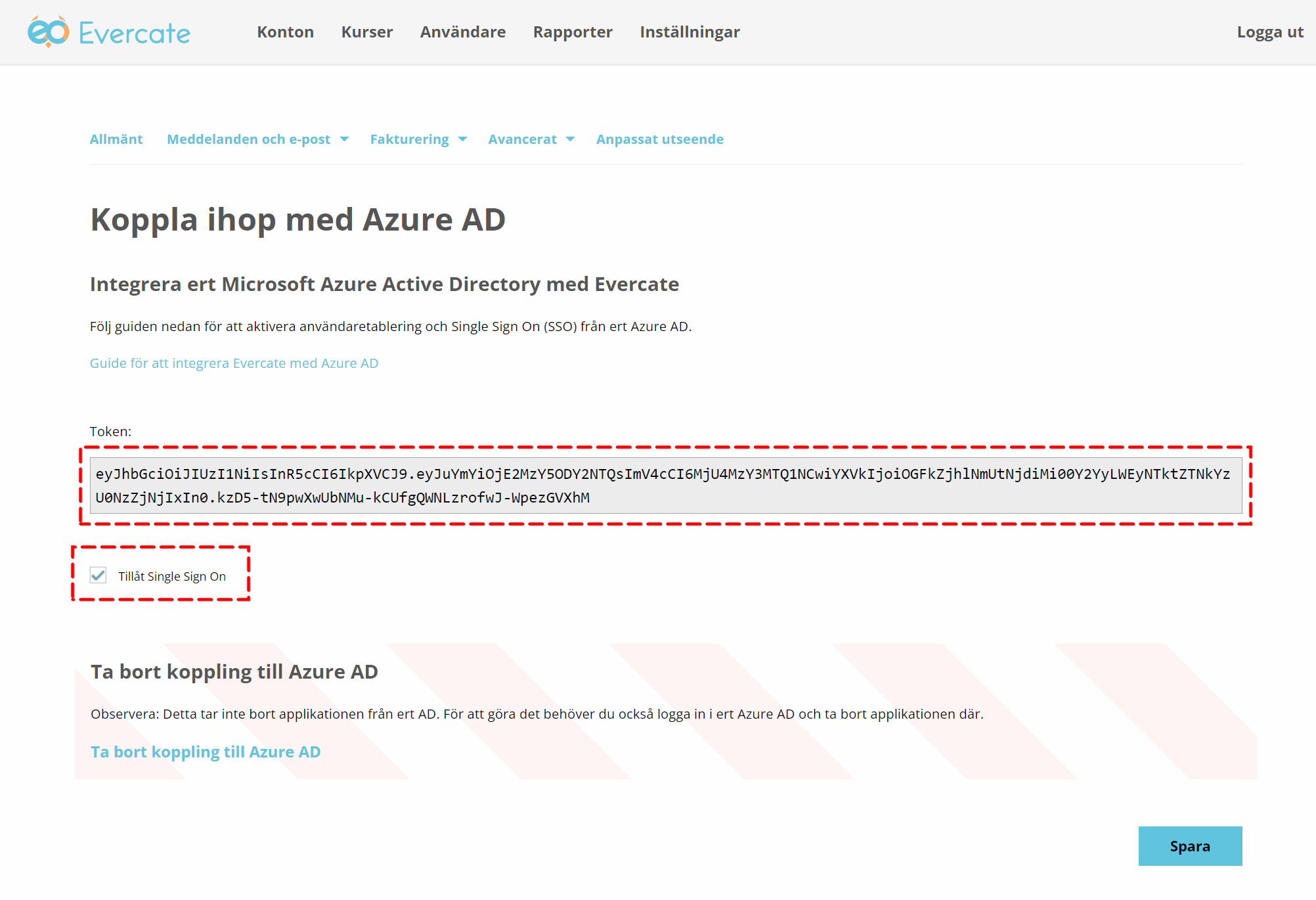
Note: For single sign on to work, every user who logs in via single sign on must have a corresponding user set up in Evercate. This can be done through any of the following methods:
- Enable provisioning from AD
- Add users manually one by one
- Import users
- Create users through our API
Configure the application in Azure for SSO
Grant consent in Azure Portal
Note! You only need to do this if you did not grant consent for the entire organization when you configured the Azure AD connection
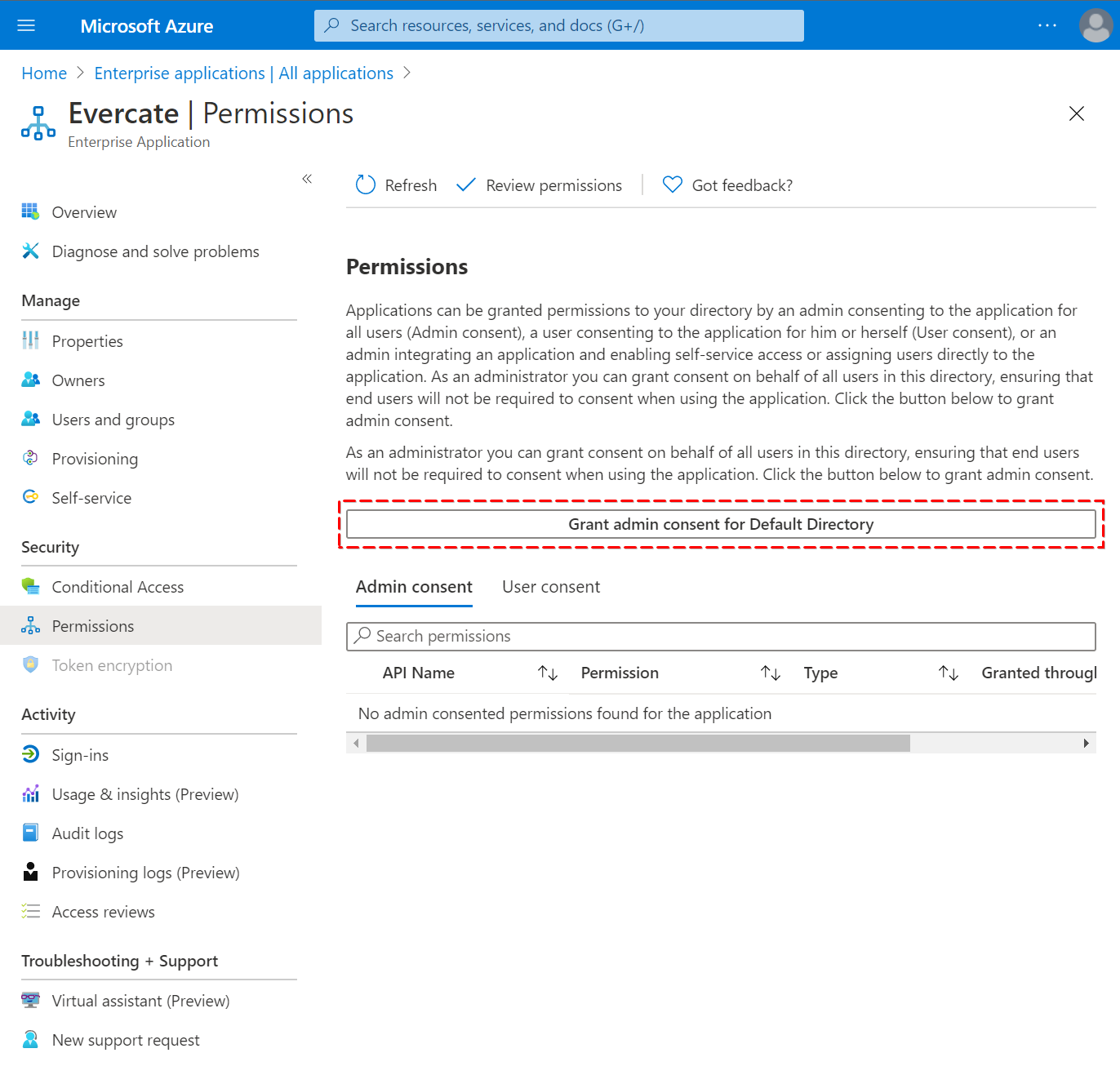
If you missed checking the "Consent on behalf of organization" box when configuring the connection, you can fix this from the Azure Portal. Go to Enterprise Applications, click on Evercate, and then go to Permissions. Click "Grant admin consent for Default Directory".
Control who has access to Evercate
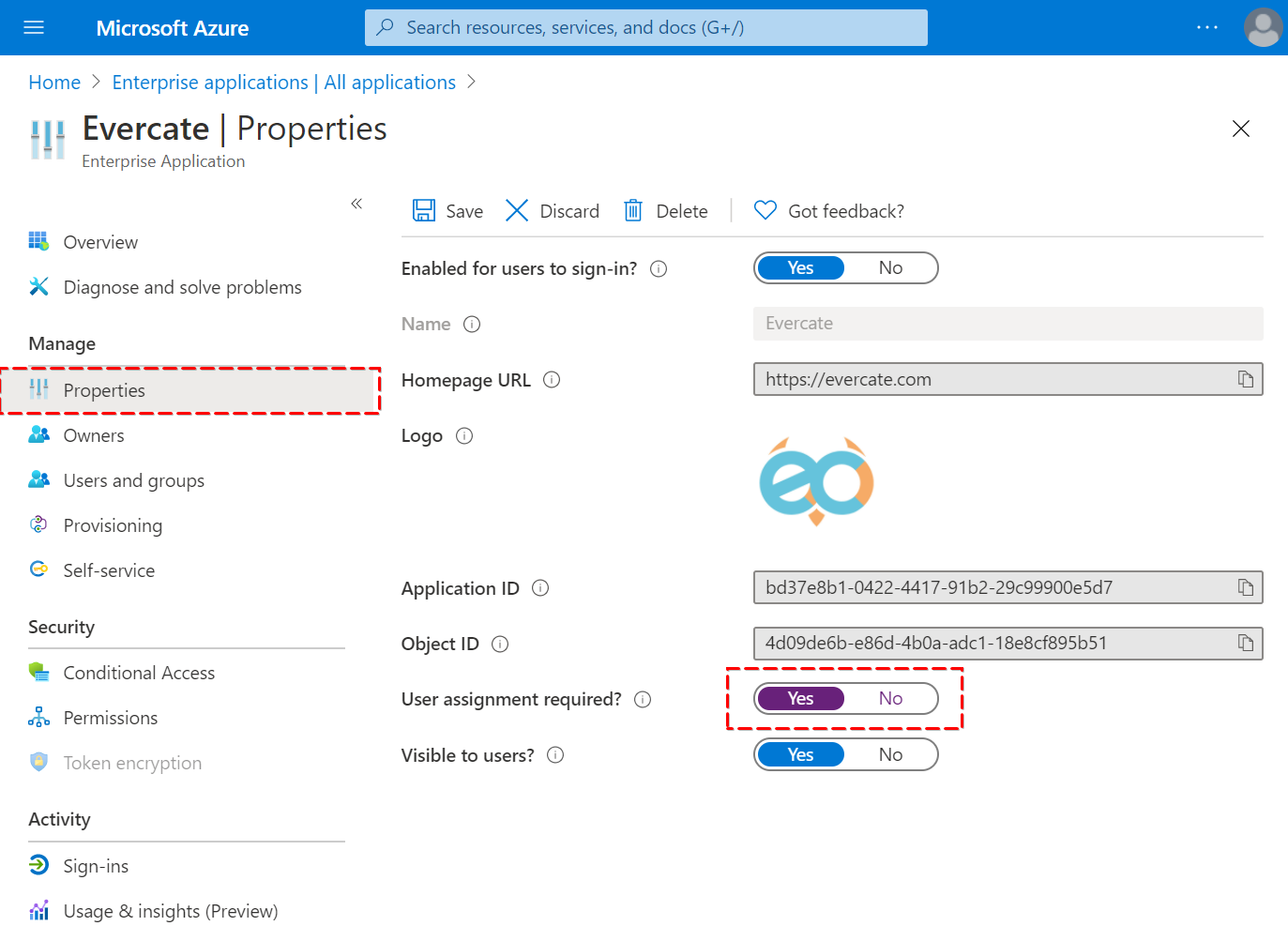
We also recommend that you require user assignment under properties. This way, you can easily control who in your organization can log in to Evercate.
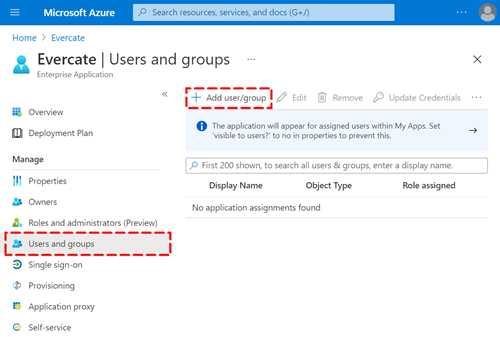
You can now go to Users and groups and add all users and groups that you want to give access to the application.
If you have enabled provisioning in Evercate, only the users who have been granted access will be provisioned to Evercate.
Provided that you have checked "User assignment required" on the properties page, only users who have been added to the application can use single sign on (SSO).
Configure the application in Azure for provisioning
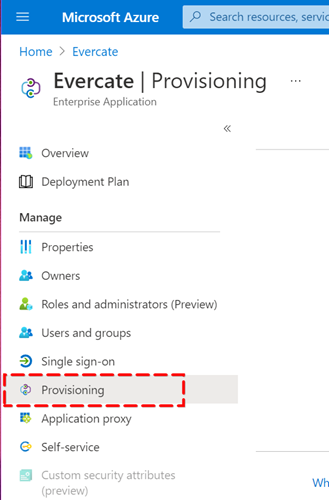
Go to Enterprise Applications, click on Evercate, and then go to Provisioning.
Set Provisioning Mode to Automatic, set Tenant URL to https://adscimprovisioning.evercate.com/scim and Secret Token is the token from your settings page in Evercate (see earlier in this guide).
You can now click Test Connection and verify that you get a successful response.
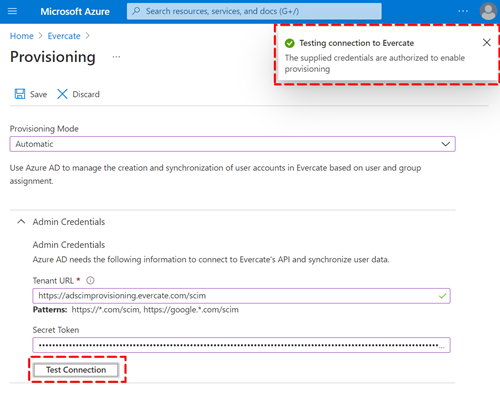
Click Save to proceed to configuring the settings
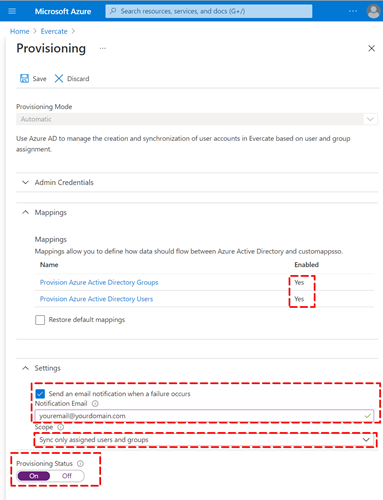
- Make sure both Groups and Users are enabled (avoid clicking on them to configure fields, leave the defaults).
- It is a good idea to provide an email address for your IT department to be notified if provisioning fails.
- Set Scope to sync only users and groups assigned to the application. If Scope is not visible, go back to Enterprise Applications, click on Evercate > Provisioning > Edit.
- Set Provisioning Status to On
- Click Save to save the settings
After a few minutes, the first cycle should have run and it should look like the following image. If not, you can click Start provisioning.
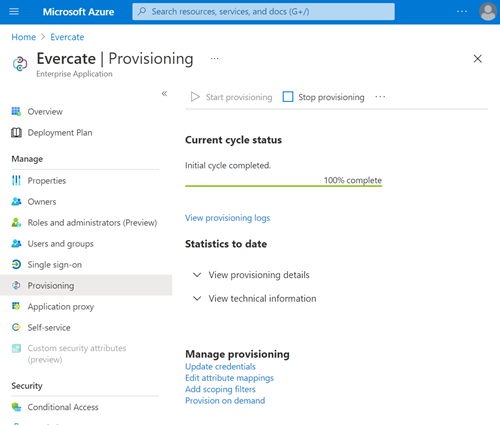
You have now set up everything. The last step is to add the users you want in Evercate.
Go to Users and Groups and click Add user/group to add the users and groups you want to add to Evercate. Azure AD will then provision these users at the next sync, which usually occurs within an hour.
Note! Group name is added as tags for users in Evercate. To get all the groups you are interested in using as tags synced to Evercate, you must add each such group separately. Even if all its users have already been added through previous actions. This is due to how Azure AD has chosen to make user information available via SCIM.
Example: Adam and Claire are both in the groups "Headquarters" and "HR". You want both of these groups set as tags for Adam and Claire in Evercate. You first add the group "Headquarters" – which adds both users to Evercate along with the tag "Headquarters". Then you add the group "HR" – which updates both users in Evercate to also have the tag "HR".
Note: If you add a group, only direct members of the group will be added, not users who belong to subgroups.