How to manually add users to a course
A prerequisite for following this guide is that you have created at least one course and have at least one user to invite to the course.
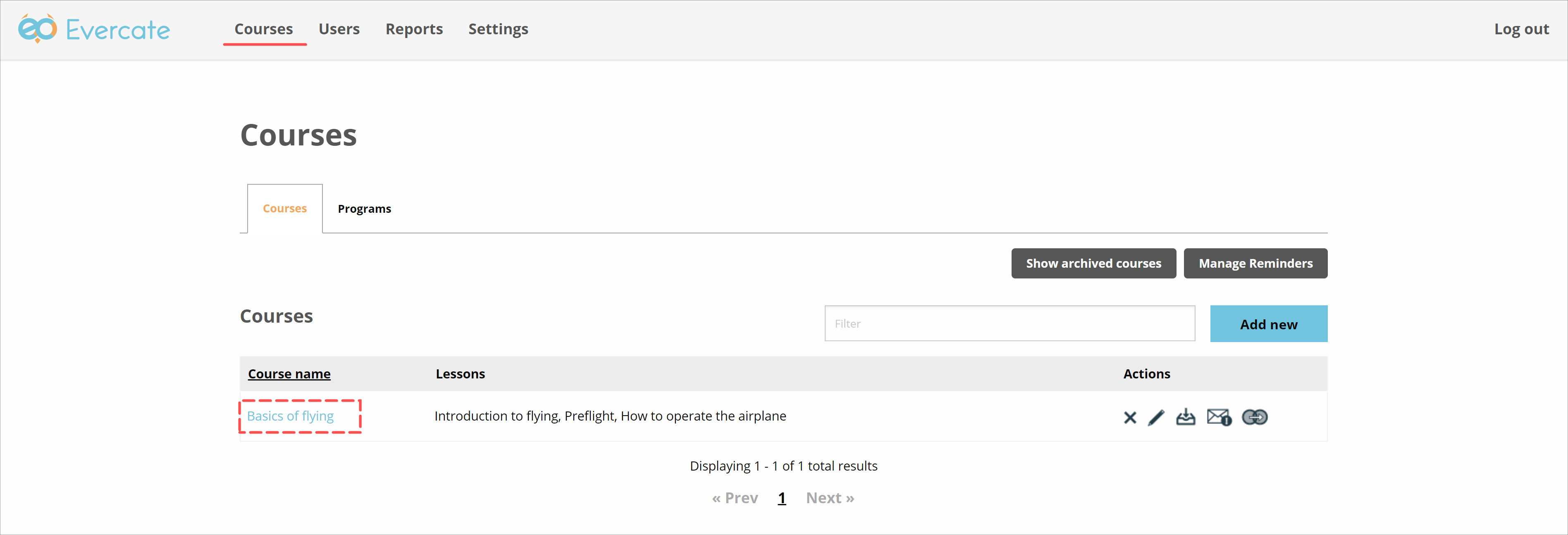
To manually add users to your course, first navigate to "Courses" in the main menu. There, in the list of your courses, click on the course you want to add users to.
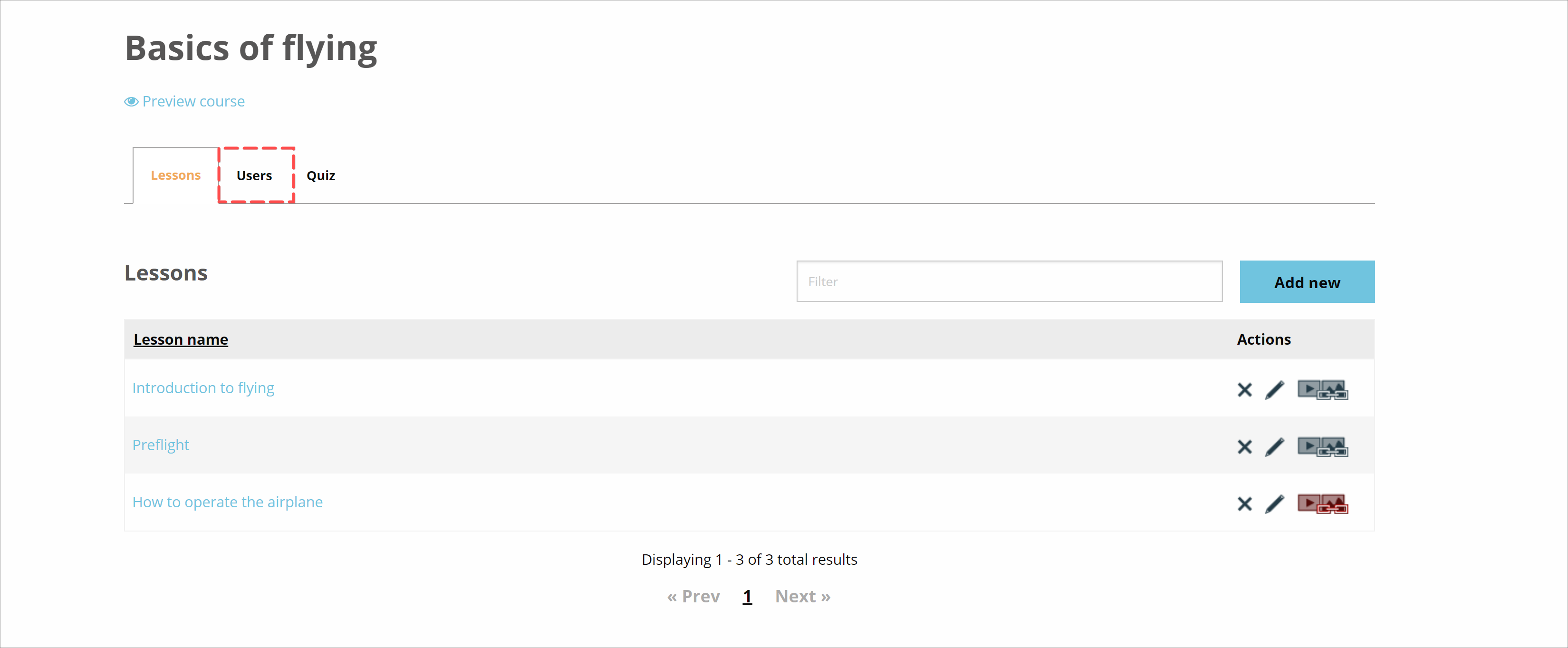
You will now enter the course and see the lessons and content you have added to it.
Above the list of our lessons, there are three tabs. We click on the "Users" tab to switch to the users view for our course.
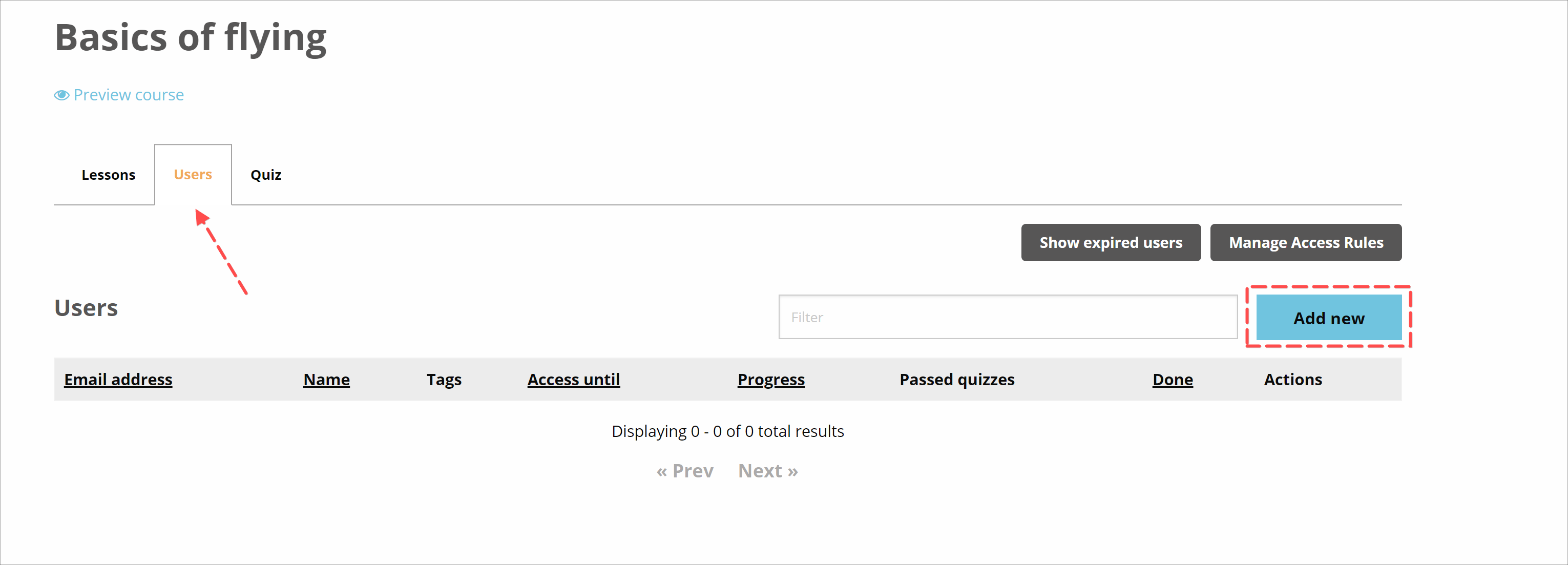
Here we see the list of users currently enrolled in the course. It is currently empty since we haven't added any users to the course yet.
To add a new user to the course, we click "Add" above the list on the right.
A panel opens with a list of all users available to be added to the course. When we find the user we want to add, we click the plus icon next to their name.
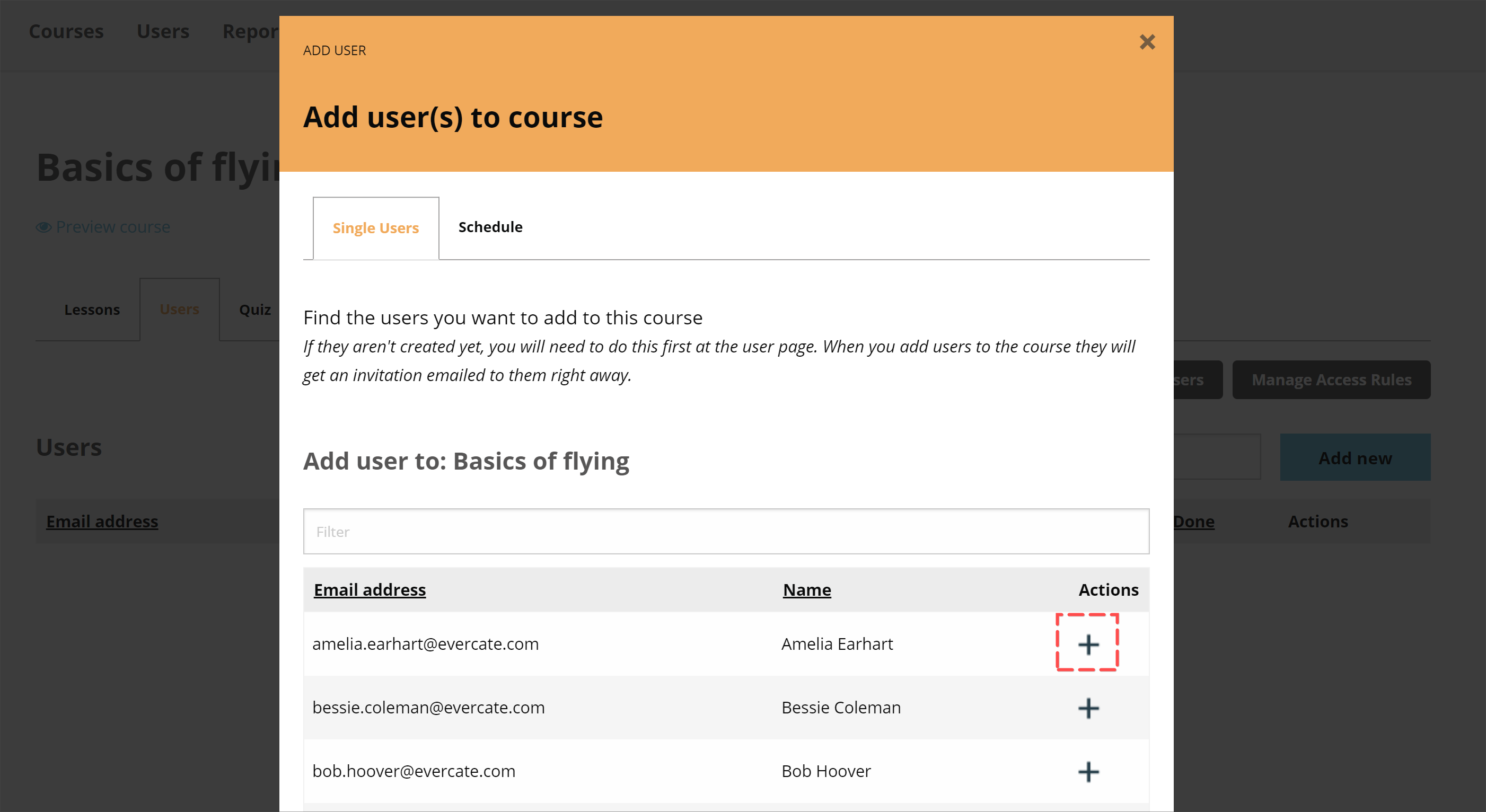
As soon as you click the plus icon, it changes to a green checkmark. This indicates that the user has been added and an email invitation to the course has been sent to them. If this is the first course they have been given access to (if they are completely new users), that email will also contain a link to set their password.
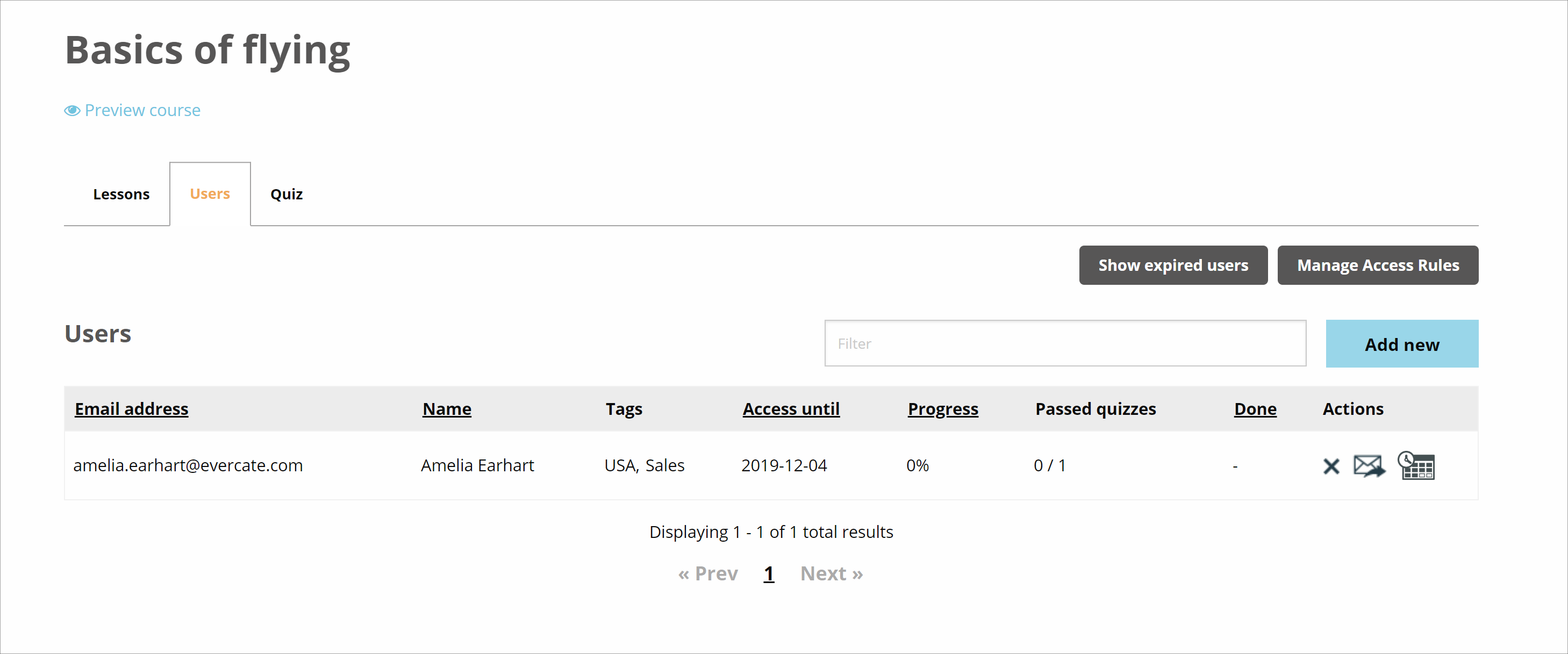
Once you have added the users you want, you can close the panel. You will now see the user in the list of users for our course.