Add and manage users in Evercate
There are different ways to manage your users. In this guide, we walk through how to create users one by one and how to create users in bulk.
Adding an individual user in Evercate
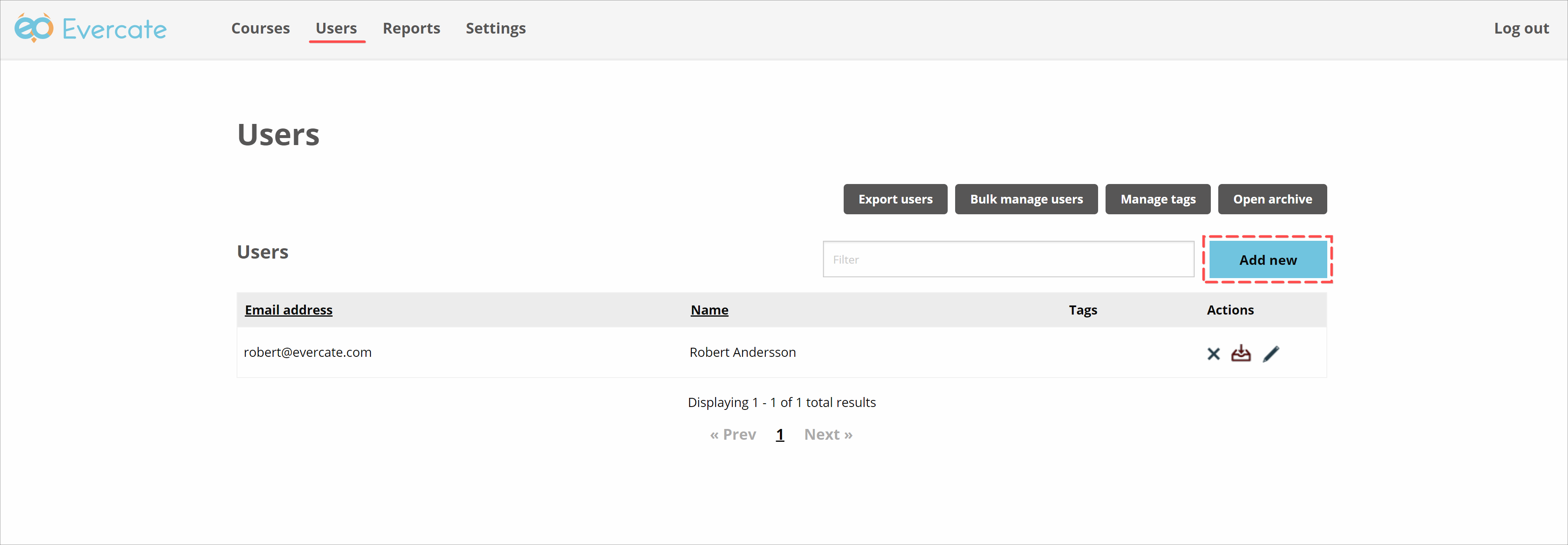
Before we can add users to a course or a program, we need to create them. They need to be made available in the system. To create a new user, we first navigate to "Users" in the main menu. Once there, we have a list of our current users in the system, and just above the list on the right there is a button that says "Add". We click on it.
We now get a modal where we can enter the user's email address, first name, and last name, which are the required fields for a user in Evercate.
If you have set up tags, you can also switch to the "Tags" tab to assign tags to this user. You can learn more about that in the guide for managing tags in Evercate.
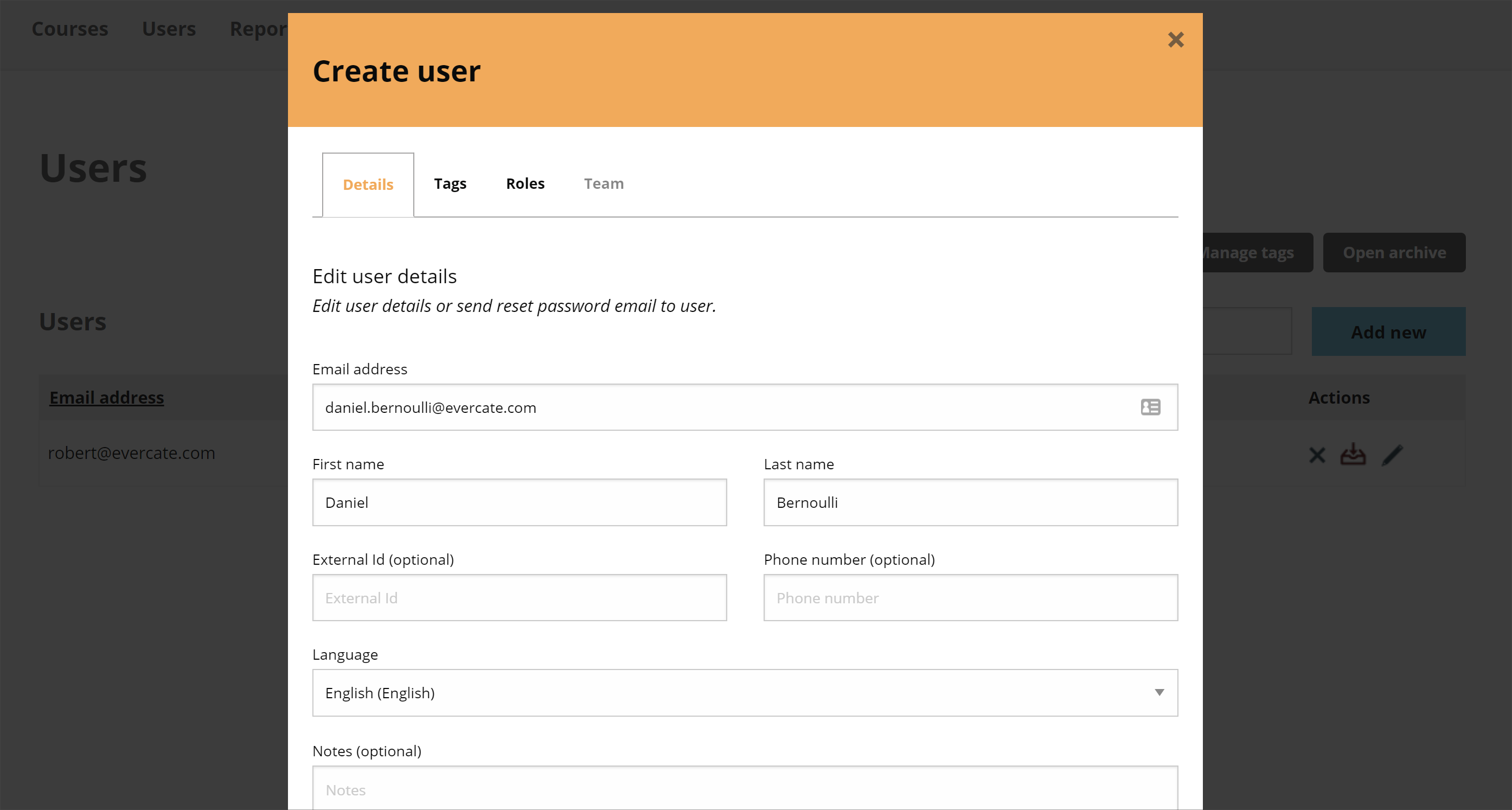
When you are done, click "Create user".
You will now return to the user list on the Users page, where you will see the user you just created.
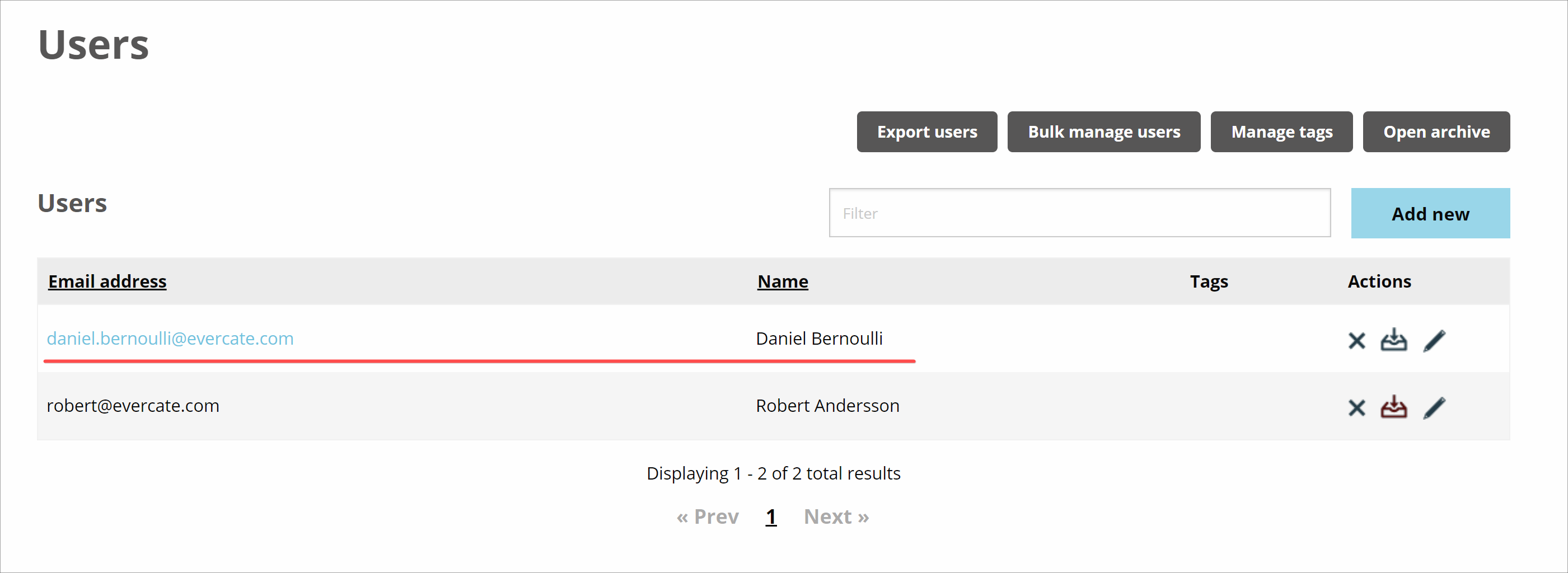
Now that the user exists in your system, you can assign courses either manually or through user rules.
Import or update multiple users at once in Evercate
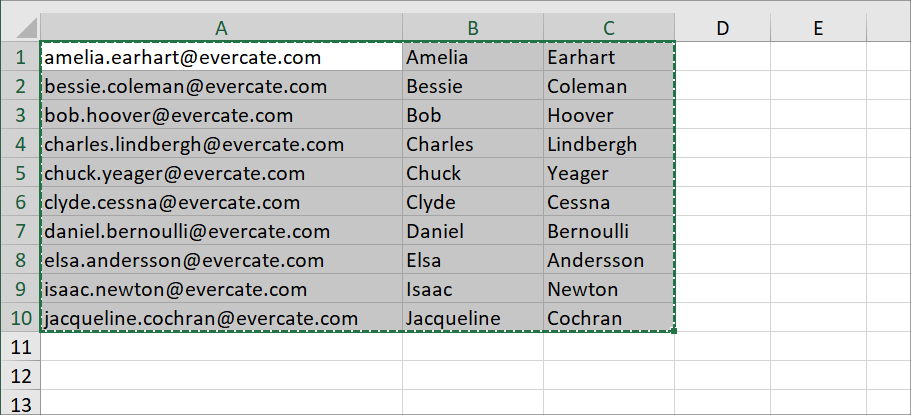
The other way to create users in Evercate's admin interface is to add users under "Manage users in bulk". To do this, we first need to get our hands on user data in an Excel file (or Google Sheets or similar). Here I have an Excel file with the users' email, first name, and last name in three columns, one user per row. I select the users I want to create in Evercate and copy the data to my clipboard.
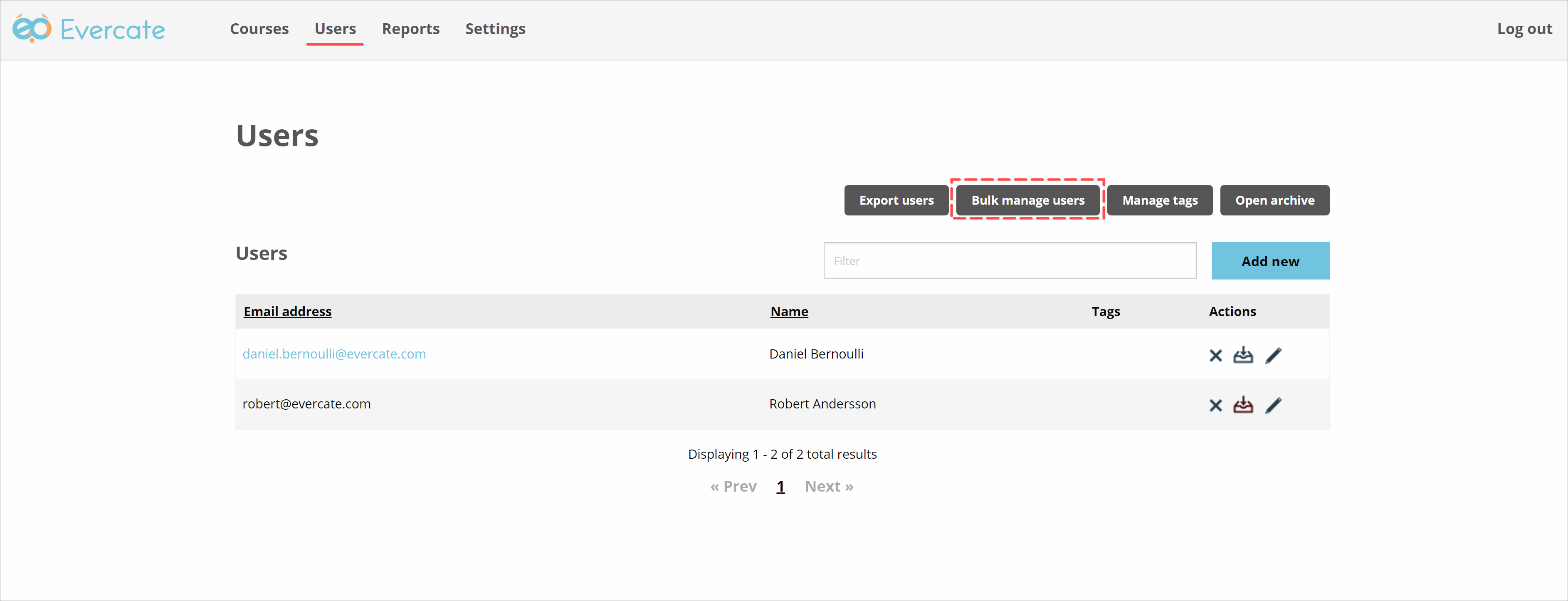
Then we go back to Evercate's admin interface and make sure we are on the "Users" page in the main menu. This time, instead of clicking add new above the user list, we click the "Manage users in bulk" button.
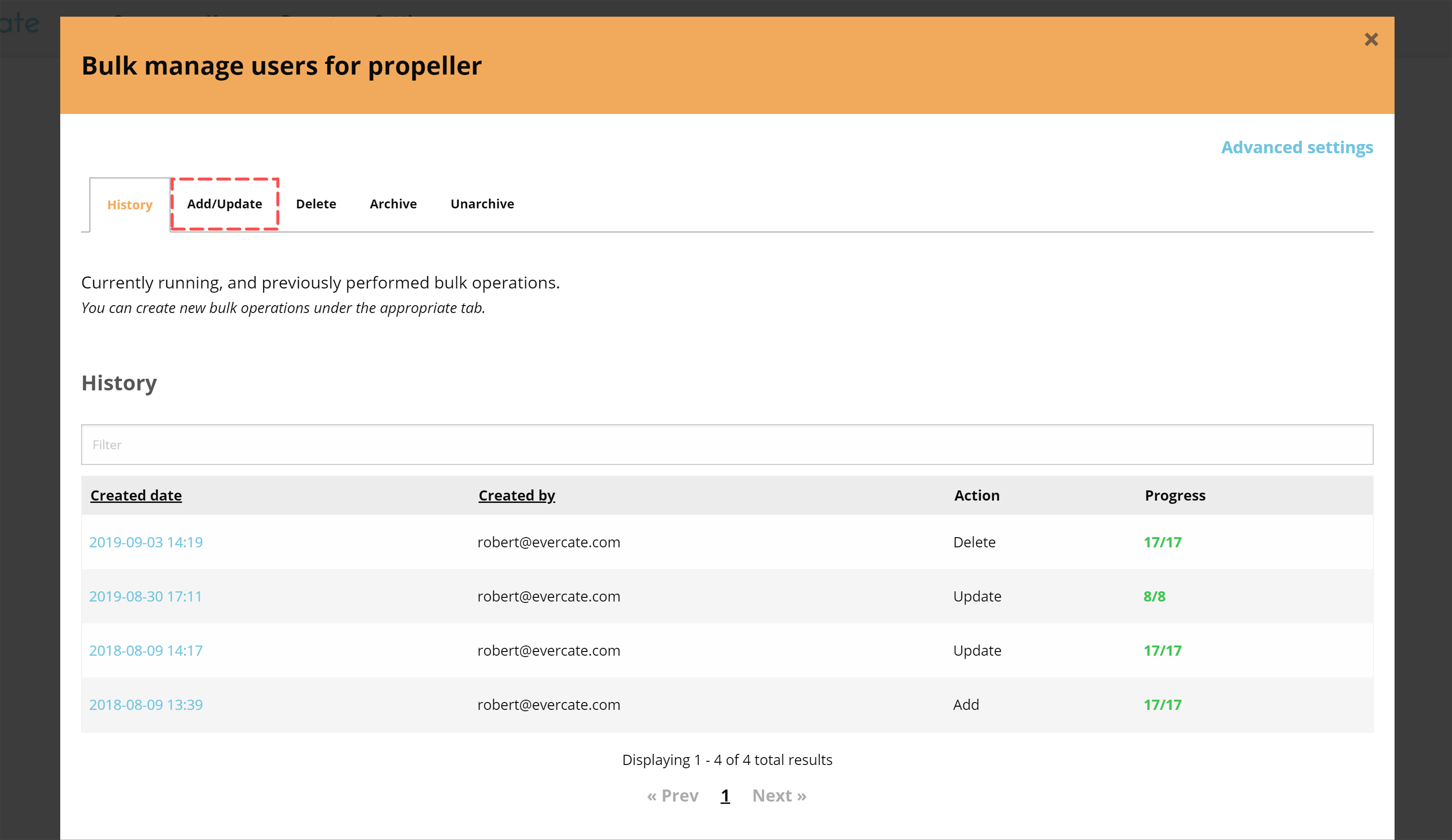
We get a modal, and on the first tab we see our history of bulk actions we have taken for our users. Since I want to add new users, I click on the "Add / Update" tab.
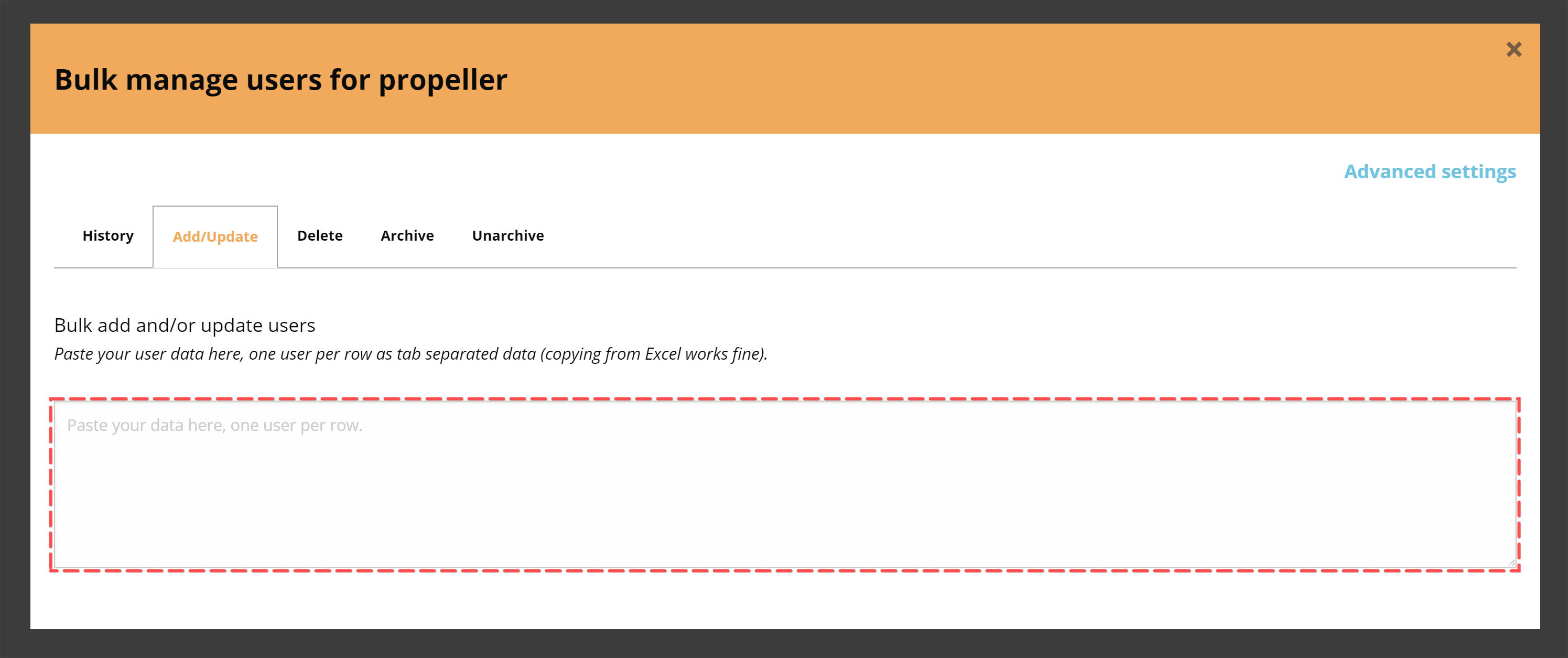
Here we are presented with a large text area where we can paste our data from Excel. So I click there and paste my data.
As soon as I paste my data, we can see that it is automatically structured just like in Excel. One user per row, with the corresponding number of columns. I make sure the column headers match the data in each column before clicking "Next". If a column header does not match the data below it, you can simply click and drag to reorder the column headers so they do.

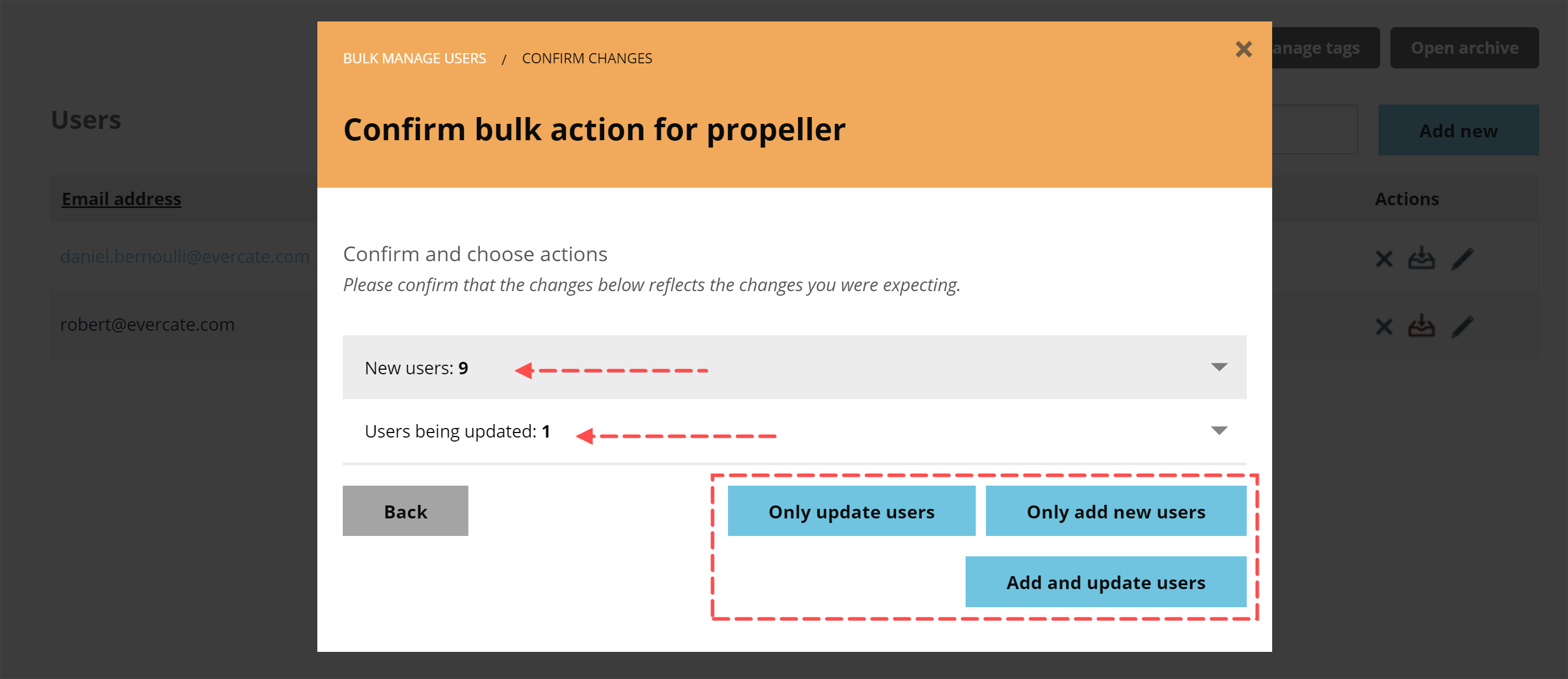
In the final step of bulk adding users, we just need to confirm that the changes will take place and choose which actions to take. One thing that stands out to me is that it says it will create 8 users and update 1 user. If we look back at the data in our Excel file, we have Daniel Bernoulli present there. Daniel is also the user we created in the first part of this guide if you remember, so this is exactly as it should be for us right now.
Since our data consists of both new users and users that already exist, we get to choose which actions to take. We can choose to "Only update users" to just update the information for Daniel, we can choose to "Only add new users" to only create users that have not already been created, Daniel in our case, or we can choose to "Add and update users" to create our new users and update Daniel at the same time. I click "Add and update users".
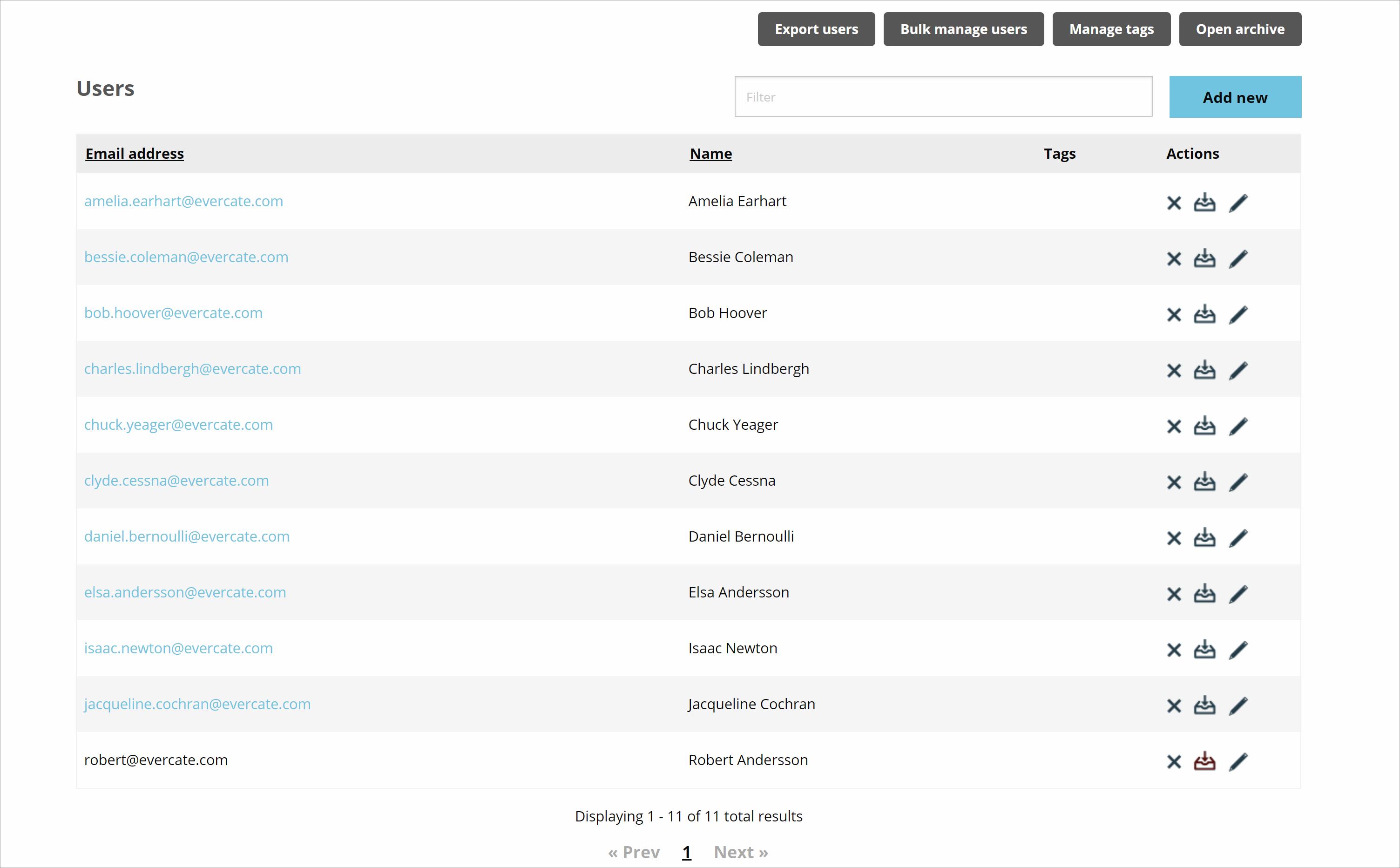
The bulk job will now run and show us its progress under the history tab, and when it is done, if we go back to our user list we will see that we now have all our created users in our user list.
Updating an individual user in Evercate
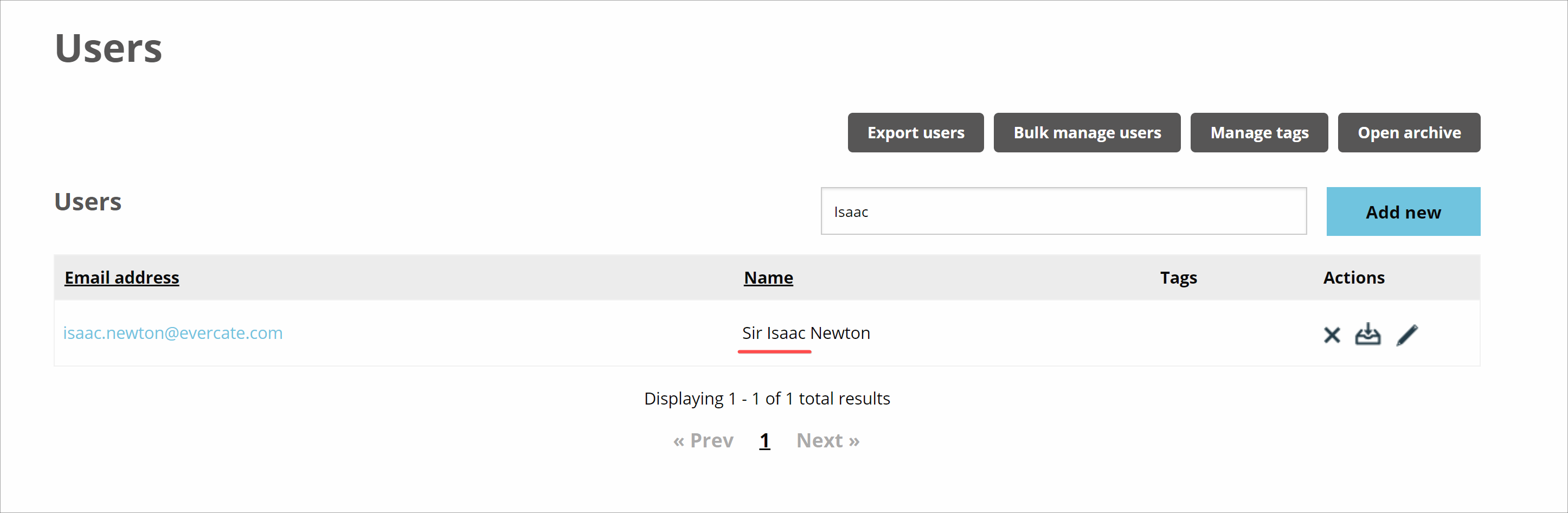
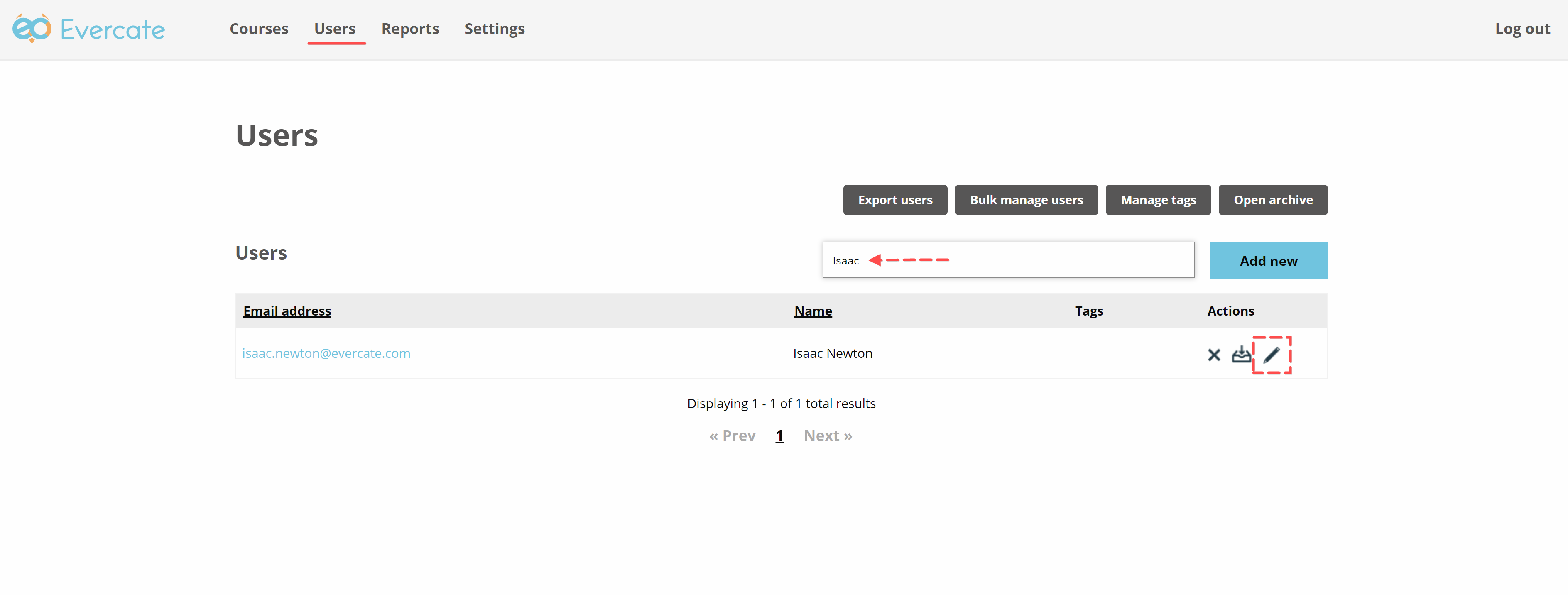
If you need to update the information for an individual user, the first thing you need to do is go to the "Users" page and find the user in question. I type "Isaac" in the filter box as I am looking for Isaac Newton. I realized that I need to add Sir before his first name because it is only right to have a bit of gravitas in your name if you discovered gravity.
Once we have found the user in question, we click the pencil icon to edit the user.
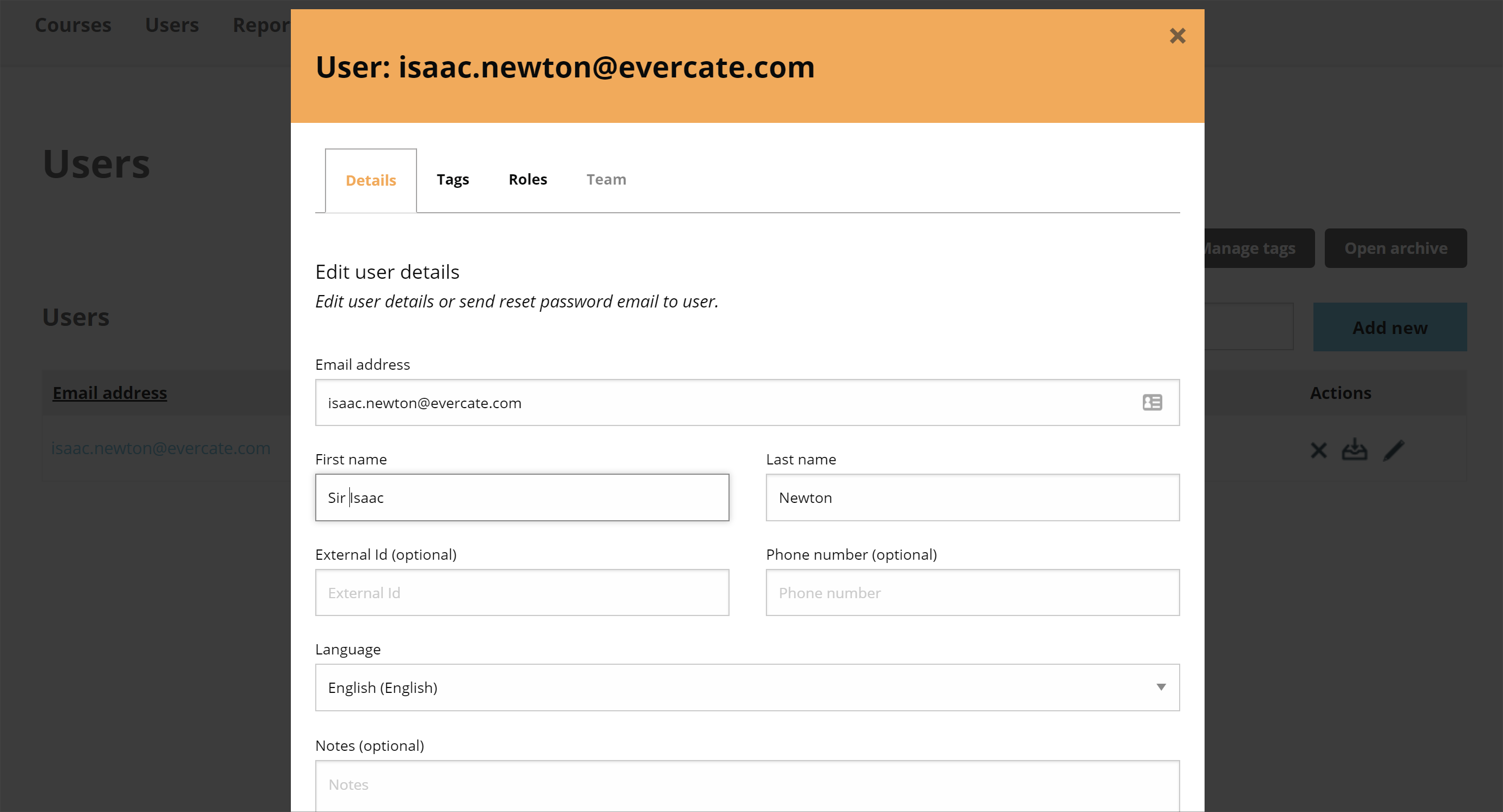
Here we get the same modal as when we created the user in the first place, the difference being that it is already filled in with the details we have for the user. So I add Sir before his first name and click Save.
Since for every action there is an equal (and opposite) reaction, we can now see that the name has changed from Isaac Newton to Sir Isaac Newton.