Create a Team Leader and assign a team in Evercate
The Team Leader role is perfect for engaging more people in the organization in follow-up and day-to-day management.
A Team Leader does not have access to anything in the admin interface, but gets an extra section available in the portal instead. Next to "My courses", they will also have access to "My team", where they can see:
- An overview of how their team is doing, and which team members are falling behind.
- A list of all courses their team has access to, along with an overview of progress for each specific course.
- A list of all users belonging to their team, along with a more detailed view of each individual user and what they have done, when they did it, and more.
As with most things in Evercate, Teams are controlled by tags, which we will go through in more detail below.
As an example, in this guide we use the user Amelia Earhart, whom we want to make a Team Leader for all users in the USA with the Sales role, so she can monitor their progress.
Making a user a Team Leader
To make a user a Team Leader, you need to edit the user. Go to the "Users" page in the menu and then find the user you want to make a Team Leader. Once you have found your user, click the pencil icon to edit them.
As you can see in the screenshot below, when we edit the user there is a tab called "Roles", which we have accessed, and next to it a grayed-out tab called "Team" which we will return to shortly.
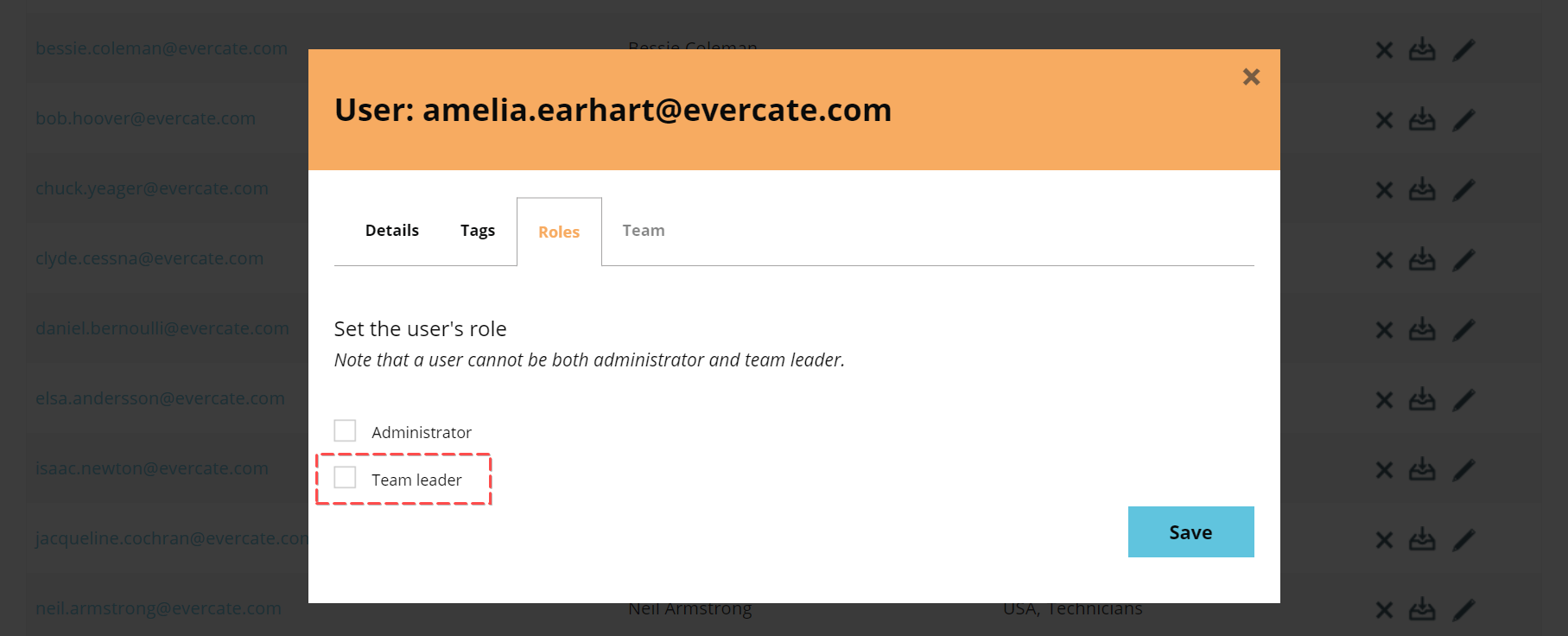
Check the box for "Team Leader" to make this user a Team Leader and then save. You will notice that once you have checked this box, additional text will appear below it saying that you first need to save and then edit the user again to be able to set up a team.
Set up a Team for your Team Leader
Click the pencil to edit the user again, and now switch to the "Team" tab which is no longer grayed out. Here you get a list of "Teams" for this user. To add a new one, click "Add".
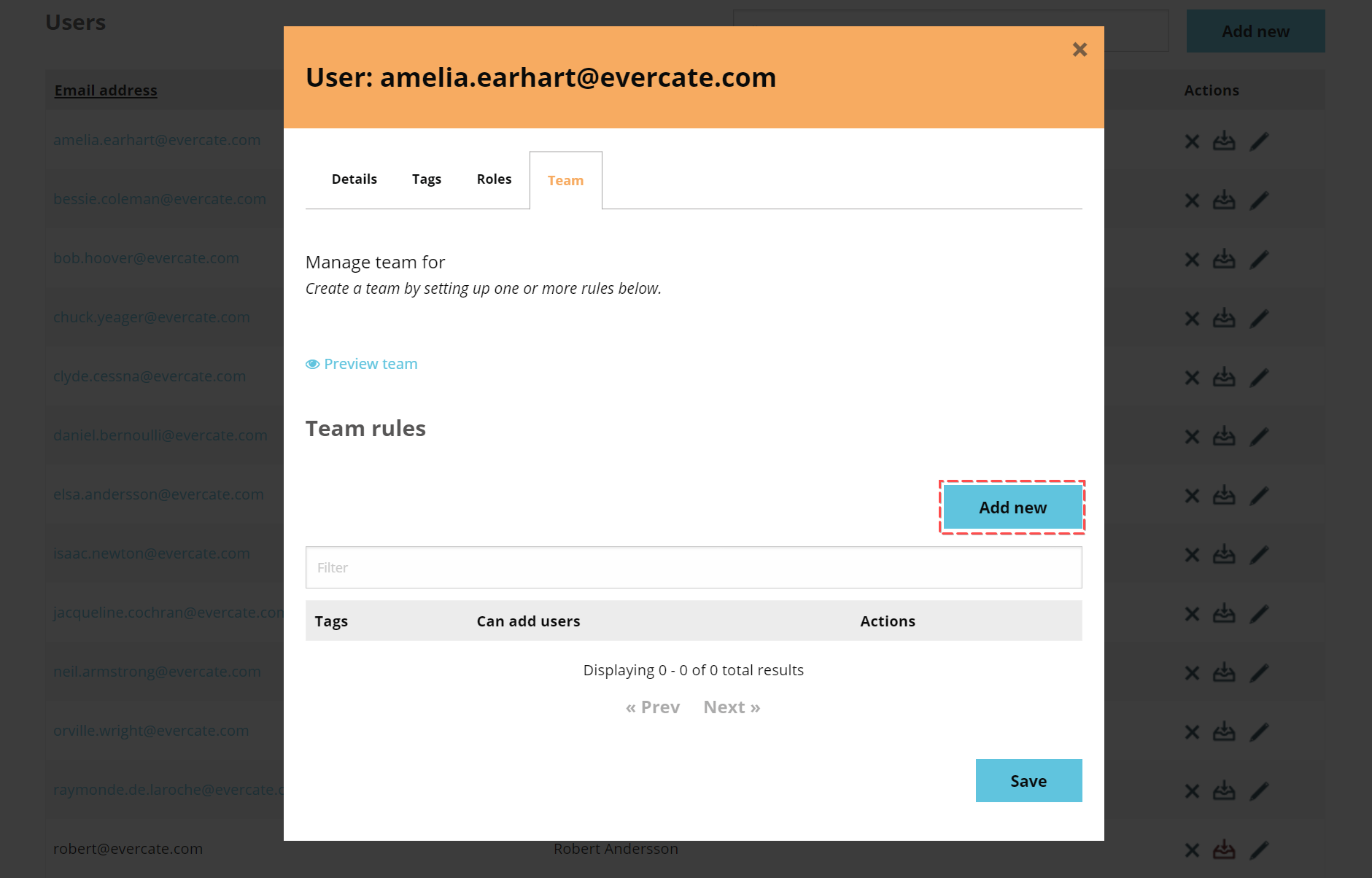
Now select the tags that should define this Team from the searchable list. In my example, I want Amelia to be the Team Leader for all users in the country USA with the role Sales, so I select both of these tags from the list.
Note that it is always an AND between these tags, so users must have both tags to be included in the team. You can create multiple different teams if needed.
Let Team Leader create users
Below the tag selector, there is a checkbox to allow this Team Leader to create users. If you check that box, a section with more options will expand.
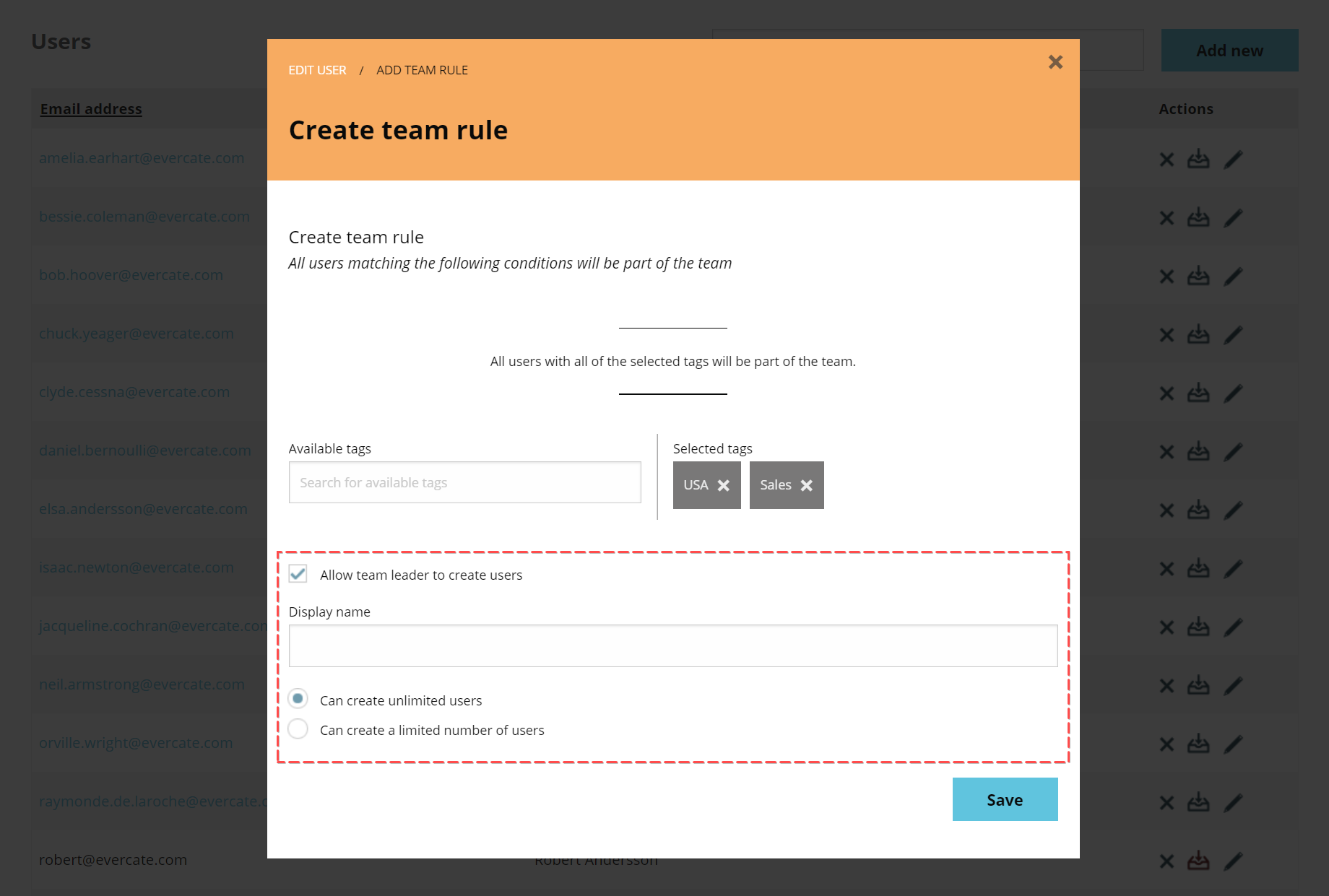
If you allow a Team Leader to create users, all users they create will automatically receive all the tags that define the team. In our example, all users that Amelia creates will automatically be tagged with the country tag USA and the role tag Sales.
This means that the users will automatically get all the content that users with those tags should have.
Most of the options for allowing a team leader to create users are self-explanatory. But worth mentioning is that Display name is used in cases where a Team Leader has multiple teams, as it becomes the name in the selector where you switch which team you are viewing.
Example: If we say that a store manager is responsible for two stores, it makes sense to set up one team per store. Instead of showing all the tags that are logical from an admin perspective, we can simplify things for the store manager and describe the teams with the stores' respective names, locations, or similar.
In addition to the tags that define the team, you can set it so a team leader can assign additional tags. This means the team leader will be able to check and uncheck these tags for their team members to further describe them, and by extension ensure they receive the right content. This provides a unified team for a unified overview, but with the ability to manage things at a deeper level.
Example: Let's take our store manager again, and say that there are different sets of content depending on whether someone is temporary staff or permanent staff. We can then define the team as usual, but make the tags "temporary staff" and "permanent staff" available so the store manager can check which one applies.
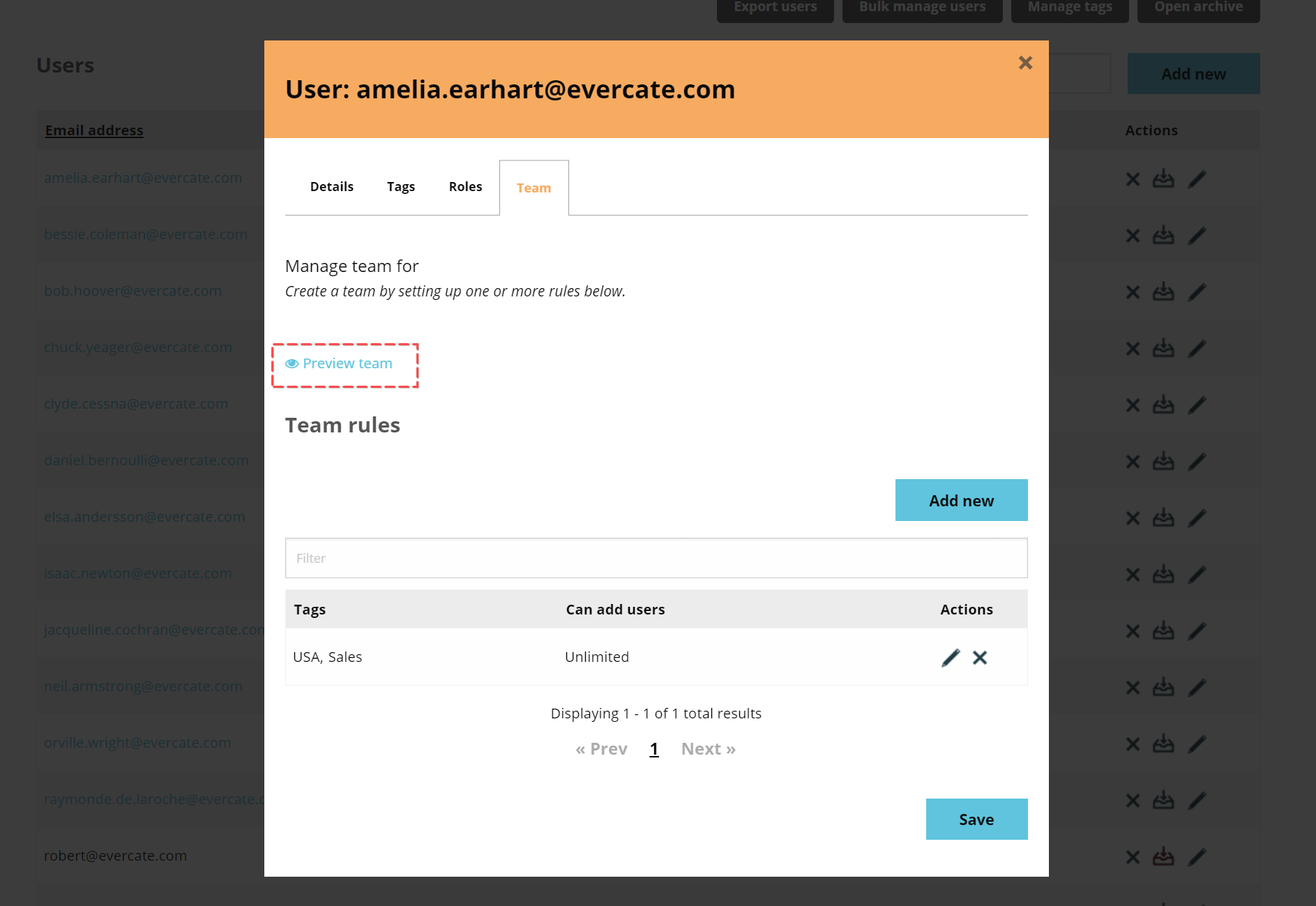
Preview Team
After you have assigned one or more teams to your Team Leader, you can preview what they will see when they go to "My team". You can find this link under the "Team" tab when editing the user.